
Office of Sponsored Projects
UIT Administrative Computing Services
eProposal Approver's Guide
Sections for eProposal Approvers
Using this Guide
This guide is both a complete and quick reference for eProposal preparers, approvers and college/department administrators. Quickly jump to specific topics using the table of contents (above) or the bookmarks in the navigation pane of your Adobe Reader.
Additionally there are separate guides available that include only those sections pertaining to approvers and college/department administrators.
Several sections within this guide use the format of first describing a page within the application and then displaying a figure that references the paragraphs directly above it.
Quick Tips
By the end of August 2011, all users must switch over to the new version of eProposal.
Overview
What is eProposal?
eProposal is a web-based system that provides for electronic preparation, submission, review and approval of what has historically been known as the Document Summary Sheet (DSS). As the goal of eProposal is to provide for an all-electronic process the need for a printed and signed paper DSS has been eliminated. Therefore using the term “an eProposal” is synonymous with a “DSS”.
The eProposal system is made up of:
- The form presented as a “wizard” (a series of pages that guide the user through the data collection process)
- Electronic approval routing and email notifications
- Integration of eProposal data into PeopleSoft by the Office of Sponsored Projects
- College/Department setup and maintenance of approval roles
- OSP specific pages for maintenance of general settings
The Business Process
This new version of eProposal introduces electronic approvals which replaces the need for printing a paper DSS and manually routing it for the appropriate signatures. The data collection and submission for approval in the new system remains the same as the prior version. It is expected that beginning August 2011, all users must be switched over to the new version of eProposal. At that time, the previous version will be sunset.
An outline of the overall process of preparing and submitting an eProposal is described below. (See Appendix 2 for a diagram of the lifecycle of an eProposal).
- The person preparing the eProposal (status shows In-Progress):
- Navigates through all pages in the wizard and fills out all required information
- Reviews the approval preview list and adds any additional approvers that may be required (See Step 2: Filling out the Form, Approvals Page)
- Submits the eProposal for electronic approval
- The people who are assigned as approvers for the eProposal (status shows Pending Approval):
- Are notified by email that an eProposal is pending their approval
- Review and approves the eProposal. If corrections are needed they may send it back to the preparer to revise & resubmit.
- The Sponsored Projects Officer (SPO) assigned to the eProposal (status shows In OSP Review):
- Reviews the eProposal according to existing business processes
- Validates that the necessary approvals have been satisfied. If corrections are needed he/she can send it back to the preparer to revise and resubmit. No further approvals are needed upon resubmission as long as changes are not made to the PI or Financially Responsible Department.
- Integrates the eProposal into PeopleSoft to initiate the project setup process
- The eProposal status is updated to Review Complete
Getting Started
Roles & Security
There are six roles that determine both what the user can see and which actions he/she can perform within eProposal. When a user logs into the system the application determines which menus, reports and home page worklists the user should see based on his/her roles:
| Role | Decription |
| Preparer/Creator |
Initiates and creates eProposals. Has full access to make changes to those which he/she has created until an eProposal is submitted. |
| Proxy | Has delegated security access to one or more eProposals. Has full access to make changes to those which he/she has been granted access until an eProposal is submitted. |
| Approver |
Designated as an approver for one or more approval roles required for the eProposal. Has read-only access to eProposal content for eProposals needing his/her approval. |
| Administrator |
Assigned at the college, department, center, or institute level by OSP. Maintains other admins. Maintains approvers and approval roles for their organization. |
| Sponsored Projects Officer |
Reviews approved eProposals according to established processes. Has full access to make changes even after an eProposal has been submitted for approval. |
| OSP Super User |
Designates administrators at the college, department, institute, or center level. Helps maintain and setup approvers and approval roles for all organizations. Has full access to make changes even after an eProposal has been submitted |
Table 1: eProposal Roles
Approvals
New for this version is the electronic collection and tracking of approvals. Approvals are meant to be configured by each college and department as business processes differ across the university. While self configuration is a main goal, there are some approvals that may seem new to some users. An email notification is sent to each approver when an approval becomes ready for his/her approval. An approver can view and approve eProposals that have been submitted, but are not yet ready for his/her approval.
Understanding Levels
An approval level indicates the order by which approvals will be satisfied. Levels can be any number and normally occur from lowest to highest. Multiple approvals at the same level are satisfied concurrently as both must be completed before the next higher level approver will be notified of his/her pending approval. While the notifications will occur in order, approvers may still approve in any order.
Although they may vary by organization, generally levels are setup such that approvals are satisfied in this order:
Level 1: PI and CO-PIs
Level 3: Center or Institute Director
Level 5: Department Chair
Level 8: College Dean
Quick Tips
An approval level indicates the normal order by which approvals are satisfied.
Approval Types
There are two types of approvals in eProposal, those that are generated automatically and those that can be added ad-hoc.
Ad-Hoc Approvals
Ad-hoc approvals can be added by any individuals with access to an eProposal. These approvers are specific individuals needed to review and approve the eProposal. Ad-hoc approvals are added by entering a level and the approver’s name. The level should be entered such that the new approver will satisfy his/her approval in the desired order. (See: Preparing an eProposal, Step 4: Adding Ad-Hoc Approvals)
Auto-Generated Approvals
Auto-generated approvals are those that are automatically added based on defined rules referencing information within the eProposal such as the principal investigator and the financially responsible department and college. Auto-generated approvals are different from ad-hoc approvals in that they assign approval roles to the eProposal instead of individual people.
These approvals are generally setup for center and institute directors, department chairs, and college dean approvals. Additional approvals may also be configured by college and department administrators. (See: For College/Department Admins, Maintaining Approvals)
Approval Roles
Approval roles are setup by college and department administrators who then assign one or more people who are authorized to approve for that role. One person is designated as the primary approver who is the recipient of all email notifications when approvals become pending for that role to approve. (See: For Approvers)
Assigning Approvals
College dean, department chair, and center/institute director approvals are added based on whether or not an approval role has been setup for that organization’s identification number (OrgID). If an approval role is not setup for an OrgID then one is not added to the eProposal. (See: Approval Flow Diagram in Appendix 2)
College and departmental administrators have the responsibility of setting up and maintaining approval roles and assigning one or more people to those roles.
Approvals are assigned to an eProposal based on the following five rules:
| Role & Level | Rules | Field on eProposal |
| PI & Additional Personnel (Level 1) | These individuals are explicitly listed on the eProposal and each is required to approve before the next level approvers are notified. | Listed as PI or Additional Personnel |
|
Center/Institute Director (Level 3) |
If the department with Financial/Administrative responsibility for the project has been identified as a Center or Institute, then all approval roles setup for that OrgID are added. All approvals relating to this center or institute should be setup with this same OrgID. |
Financial/Administrative Resp. Dept/Division. |
|
Department Chair (Level 5) |
Based on the PI’s home department. Approvals are setup by default at the OrgID where the Chair is assigned. Because the PI’s home department could be at a lower level than where the approval is setup, if an approval has not been setup for that OrgID, then the process rolls up the department tree until an approval is identified. All approval roles setup for that OrgID are added. All approvals relating to this department should be setup with this same OrgID. | Department ID (DeptID) listed for Principal Investigator |
|
College Dean (Level 8) |
This is the OrgID listed as the college for the Financial/Administrative Resp. Dept/Division. All approval roles setup for that OrgID are added. All approvals relating to this college should be setup with this same OrgID. |
College listed for Financial/Administrative Resp. Dept/Division. |
|
Vice President for Research (Level 20) |
This role is intended to be the final approval for an eProposal, but is not always required. It is automatically added only when one or both of the following questions are answered YES. Additionally, the associated documents required for each question must also be attached in order to pass validation and submit the eProposal for approval. |
1g. Will a waiver or reduction in the negotiated F&A rate for this project be requested? 1h. (Will the University cost share any of the expenses for this project?) |
Table 2: Approval Types
Quick Tips
For more details on approvals, see the Approval Flow Diagram in Appendix 1.
Email Notifications
The new eProposal is equipped to send email notifications. Accordingly, all people using eProposal must have a valid University of Utah email address. In the event that a preferred email address cannot be found in PeopleSoft, the system will use the uNID@utah.edu email address for notifications. All university employees have this address by default (for uMail).
All notifications include summary information and a direct link to the eProposal. Notification types are outlined below.
Quick Tips
Emails are sent as notifications to PIs and approvers at each step of the process.
Principal Investigator
The PI and creator (PI only if they’re the same person) of the eProposal will receive notifications when:
- An approver or someone in OSP has requested that the eProposal be revised and resubmitted along with the person’s comments.
- An approver has not approved the eProposal along with the approver’s comments.
- All approvals have been satisfied for the eProposal and it is now received in OSP and ready to be reviewed.
Approvers
The approvers will receive email notifications (who are either listed as either the primary approver for the approval role, or are individually listed as an ad-hoc approver) when:
- An approval becomes pending/ready for the approver after lower level approvals have been satisfied.
Sponsored Projects Officers (SPOs)
SPOs working in the Office of Sponsored Projects receive notifications for those which they have been assigned when:
- All approvals have been satisfied and the eProposal is ready for OSP’s review.
Quick Tips
New Timeout! Leave & return to eProposal without being timed-out all day.
eProposal Application
With a general understanding of the details of why eProposal works the way it does, this next section provides detailed examples and a quick tour of the application.
New Features
There have been so many improvements in the new version that it’s impossible to list everything here. Highlights include:
- Electronic approvals
- College/Department maintained approval roles
- 10 hour timeout. Work without being kicked out every 45 minutes!
- A completely new way to fill out proposal information with validation along the way
- Validation icons that indicate missing information
- Home page with personalized worklists
- Type-Ahead/Auto-Complete searches for PI, sponsor, department contacts, approvers etc…
- Pages are automatically saved when moving from page to page
- A tracking/audit page that shows the progress, dates and any comments of actions taken on each eProposal
- Enhanced reporting
- Email notifications that include a direct link to the eProposal
For Approvers
This section describes additional screens available only to those who are either listed as an ad-hoc approver or are assigned as an approver for a given approval role.
Quick Tips
Approved!
The Review & Approve page quickly shows all approvals for an eProposal.
Approval Actions
When viewing an eProposal that is in the Pending Approval state, there are two additional sections in the Section Navigation: Review & Approve and Proposal Tracking
Review & Approve
This page displays the pending approvals required for an eProposal. An approver can review the eProposal information in a single page by clicking the Expand to See Full button or he/she can click through the Section Navigation links. When the approver is ready to approve the eProposal he/she clicks the Review & Approve page. Figure 1 illustrates:
- If an approver can approve for a given role in the table, there will be icons visible to approve, not approve, or send back to the PI for revision. Comments are required when the action taken is to not approve or send back for revision.
- Notification emails will only be sent once the roles are listed as pending. Approvers can still approve before lower level approvals are satisfied.
- Once an approval has been satisfied, the system records who did the approval and when. This is particularly useful for roles with several alternate approvers.
Quick Tips
Notifications Emails are only sent once an assigned approval role is pending.
 Figure 1: Approval Actions
Figure 1 illustrates:
- If an approver can approve for a given role in the table, there will be icons visible to approve, not approve, or send back to the PI for revision. Comments are required when the action taken is to not approve or send back for revision.
- Notification emails will only be sent once the roles are listed as pending. Approvers can still approve before lower level approvals are satisfied.
- Once an approval has been satisfied, the system records who did the approval and when. This is particularly useful for roles with several alternate approvers.
Changing a Primary Approver
When there is more than one approver for an approval role, only the primary approver receives email notifications. To help facilitate updating the primary approver due to schedules etc., each approver has the security to change the primary approver for each of his/her approval roles.
Approvers can select the Maintenance menu item and slick on the Set Primary Approver link. (see Figures 2 - 3)

Figure 2: Set Primary Approver Menu
Once selected, the Approval Roles page displays all the roles for which the approver has been assigned. To change the primary approver
- Click on the approver icon.
- Change the primary approver by selecting the radio button in the appropriate column for the desired approver.
The change takes place immediately and no further action is necessary.

Figure 3: Assign Primary Approver
Quick Tips
Primary Approver
Only the primary approver gets emails. You can set a different approver as the primary as needed.
Reporting
There are a variety of reports available to most users that aid in monitoring and tracking status. The number of reports that are visible on the Reports page are dependent on the security of the user.
Additional reports may be added in the future. This section outlines those available to date.

Figure 4: Reports Page
To run a report click on the Reports menu link. Figure 4 illustrates:
- Click on the top folder to expand or collapse the reports list.
- Select a report from the eProposal Reports list.
- Enter any criteria to narrow your search results.
- Click View Report to see the report’s results in a web browser.
- Click Save as Spreadsheet to download the results in an Excel format.
Quick Tips
New Reports
We’re always looking to improve our reports. If you think something is missing, just let us know!
Status Reports
The status reports are publicly available although each has a different targeted audience. The reports return a similar set of data and have a similar set of criteria:
| Department: | The college or department |
| Include Rollup? | Include all organizations that report to the selected department |
| Status: |
The eProposal status: In Progress Pending Approval In OSP Review Review Complete |
| Start: | Varies depending on report, see below |
| End: | Varies depending on report, see below |
| Employee: | When required, this is the name of the listed PI. In most cases, can enter more than one. On the Sponsored Project Officers Status report the employee is restricted to names of SPOs. |
Table 3: Status Report Criteria
Department Status
This report gives eProposal summary information. It returns data based on the following criteria and all if none are selected.
Date criteria is selecting all eProposals with a creation date between the start and end date chosen.
PI Status
This report gives eProposal summary information based on an entered PI. At least one PI must be selected to run the report. It can be run for more than one PI at a time.
Date criteria is selecting all eProposals with a creation date between the start and end date chosen.
Sponsor Status
This report gives eProposal summary information based on an entered sponsor. At least one sponsor must be selected to run the report. It can be run for more than one sponsor at a time.
Date criteria is selecting all eProposals with a creation date between the start and end date chosen.
Sponsored Projects Officer Status
This report gives eProposal summary information based on the assigned Sponsored Projects Officer (SPO). At least one SPO must be selected to run the report. It can be run for more than one SPO at a time.
Date criteria is selecting all eProposals with a sponsor due date between the start and end date chosen.
Miscellaneous/Other Reports
Additional reports are available that are targeted for those who are approvers and those in administration. These reports use similar criteria as the Status Reports.
Approval History by EmplID
This report returns eProposal summary information based on those who have approved it and is only intended as a means for tracking statuses after the approval has been satisfied. This has been requested since once an approval is satisfied, the eProposal falls off of the Awaiting My Approval worklist for the approver. At least one approver must be entered to run the report, but more than one may be entered.
Approval Role by Org
This report is an administrative report that allows departments see a report of all of the approval roles and assigned approvers associated with their department. If a department is not entered then all results are returned.
Collaborator
The Vice President for Research asked that the Collaborators section be added to eProposal. This section collects a list of other faculty members, not involved with the project, who have reviewed the proposal and provided feedback. This report returns summary eProposal information for all individuals listed as collaborators within a specific date range.
Collaborator by EmplID
Similar to the Collaborator report, this report returns the same information but for specific PIs.
This concludes the quick tour. The next segment of this manual will go through a step-by-step creation of a new eProposal.
New Users Quick Tour
The quick tour is intended to give new and returning users a “lay of the land”. It’s recommended that readers open eProposal application and click through the pages and features as they are being described to get a hands-on feel for the eProposal application.
Launching eProposal
Access eProposal by either:
- Logging on to the CIS (Campus Information Services)
- Locate the Research Administration Pagelet (it may need to be added using the Content link in the upper right corner of CIS)
- Select the eProposal (new) link. (The older version of eProposal will remain linked from this pagelet until the entire university has switched to the new version
- Go directly to the application’s URL (bookmarking this link is recommended):
- https://www.acs.utah.edu/uofu/fac/eProposal
- Sign in using a CIS uNID and password
Quick Tips
Simple Sign-inBookmark the URL to eProposal and go directly to the application.
My eProposal Home
The application will open to the Home page, which contains a few different sections:
- Top menu bar: Home, DSS (create, search, print, delete [OSP only]), Reports, Maintenance (for administrators, approvers and OSP users), and Help (link to documentation)
- Personalized worklists: displays eProposals pending the user’s action as well as all eProposals that are still in process, pending approval or completed/withdrawn.

Figure 5: My eProposal Home
Quick Tips
Worklists
A personalized view of all the eProposals needing your attention.
Edit/View a DSS
If an eProposal is not viewable in one of the worklists on the home page, then use this search to edit or view any eProposal. Search by any combination of:
- DSS Number – this is the proposal ID given to the eProposal (PID)
- PI EmplID – the employee ID of the principal investigator. Start typing the first or last name or ID of the person and a drop down box will appear. Select desired individual within the list to use as a search parameter.
- Sponsor ID – This is the sponsor’s long name. In the same way the employee box works, begin typing either the id or name of the sponsor and a drop down will appear. Select desired sponsor within the list to use as a search parameter.
- COI Number – the conflict of interest number for the PI or any other personnel listed on the eProposal.
- Short Title – the short title entered for the eProposal.

Figure 6: Edit/View DSS Page
Quick Tips
Searching
What you type into the search field shows up in font. You must still select your choice in the drop down
When search results are displayed, the proposal ID is displayed as a hyperlink (underlined) for only those eProposals within the user’s security. Otherwise, the summary information is displayed and the detail remains confidential.

Figure 7: Security in Search Results
Wizard User Interface
The entry pages for creating and modifying an eProposal have been changed to be a series of smaller pages that contain logical groupings of similar data. Moving through the pages is easy and does not require that all information on a page be completed before moving on to a different page or section.
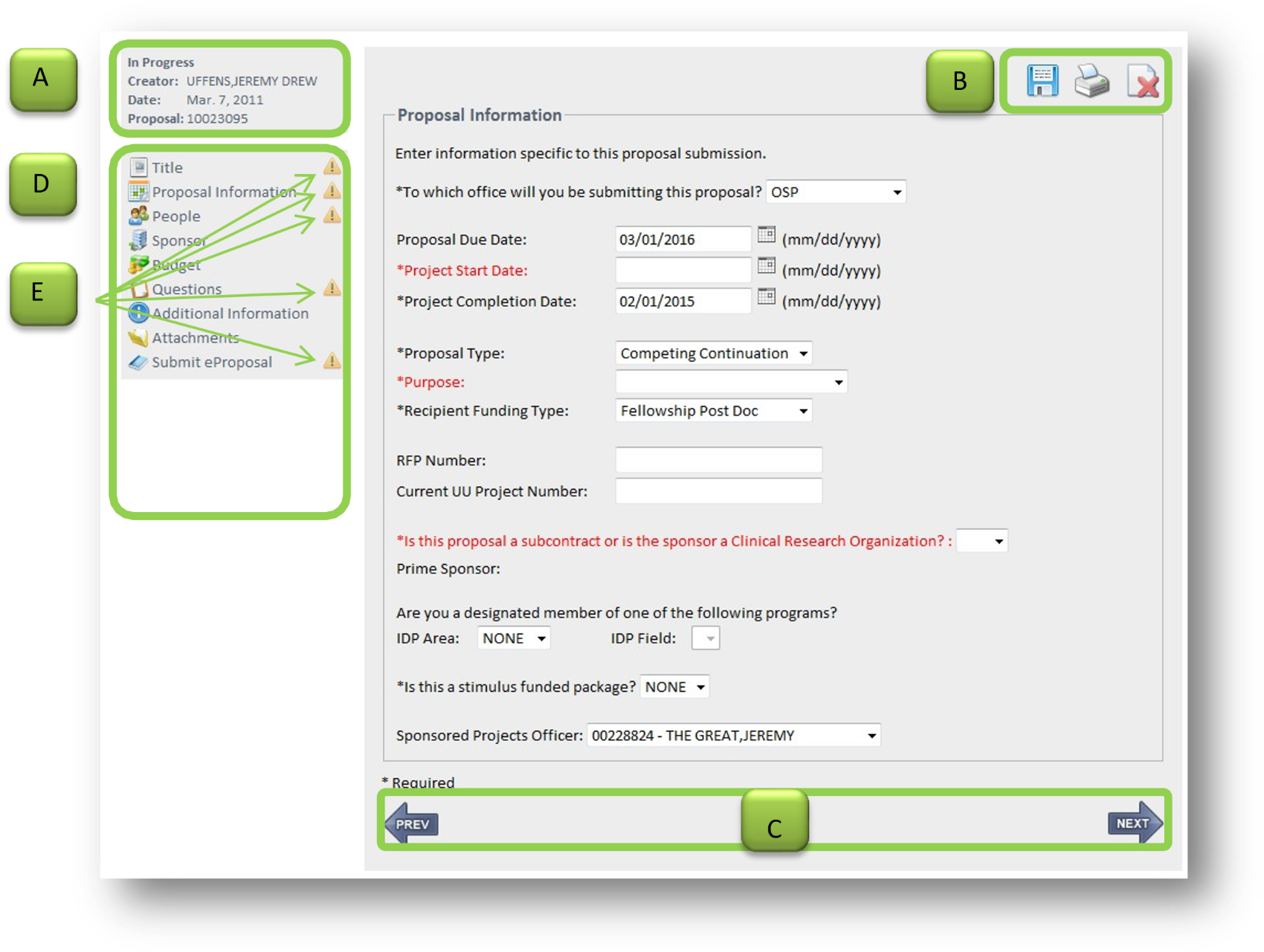
Figure 8: Wizard User Interface
Quick Tips
Finish Later?
It may take more than one session to complete your eProposal. Now it’s easier than ever to come back and pick-up where you’ve left off.
Figure 8 illustrates the following:
- Status information including the current state of the eProposal, the name of the preparer, the creation date, and proposal ID
- Buttons for saving, printing and withdrawing
- Navigation using the next and previous arrows at the bottom of each page
- Navigation using the Section Navigation links
- Validation indicators that display when required information is missing from a section. Required data elements are identified with an * next to the label. After an initial save, the labels turn red if the required information is still missing. (see Step 3: Resolving Validation Errors)
Quick Tips
Automatic Save
Pages are saved automatically when you click on the Next and Previous arrows.
Monitoring & Tracking Tools
Several new tracking features have been added to eProposal to help monitor the lifecycle of an eProposal. These include personalized user worklists and a special tracking/audit page for each eProposal.
Worklists
The worklists on the home page are a great tool to keep track of things. (See My eProposal Home). When the flag icon ( ) is displayed then someone associated with that eProposal has made a note which is made visible by using the mouse to hover over the icon. The worklists that are visible are dependent on the roles that the user has and are detailed below.
Being Prepared
The Being Prepared worklist includes eProposals that were created by the user and have not yet been submitted for approval. Included is the date that the eProposal is due at OSP as well as the sponsor’s due date. Proposals are due 5 days before the sponsor’s due date. Click on the OSP Due Date header to view a memo from the VP for Research regarding this policy. Clicking on the proposal ID will open the first page of the wizard interface.

Figure 9: Being Prepared Worklist
Quick Tips
OSP Due Date
Policy states that eProposals are due to the Office of Sponsored Projects 5 days prior to the sponsor’s due date.
My Submitted DSSs
The My Submitted DSSs worklist includes those eProposals that have been submitted for approval. Select whether to view only those that are Pending Approval, In OSP Review, or All proposals via the drop down menu. Clicking on the proposal ID will display the Review & Approve page along with any pending approvals. No changes to the eProposal are allowed in this state.

Figure 10: My Submitted DSSs Worklist
Completed DSSs
The Completed worklist displays a history, by year, eProposals that have been approved and reviewed by OSP. The drop down menu will display all years for which a user has created an eProposal. The current year will display and no data for new users who have not yet completed an eProposal. eProposals that have been withdrawn can also be displayed in this worklist. No further changes can be made to eProposals in this state.
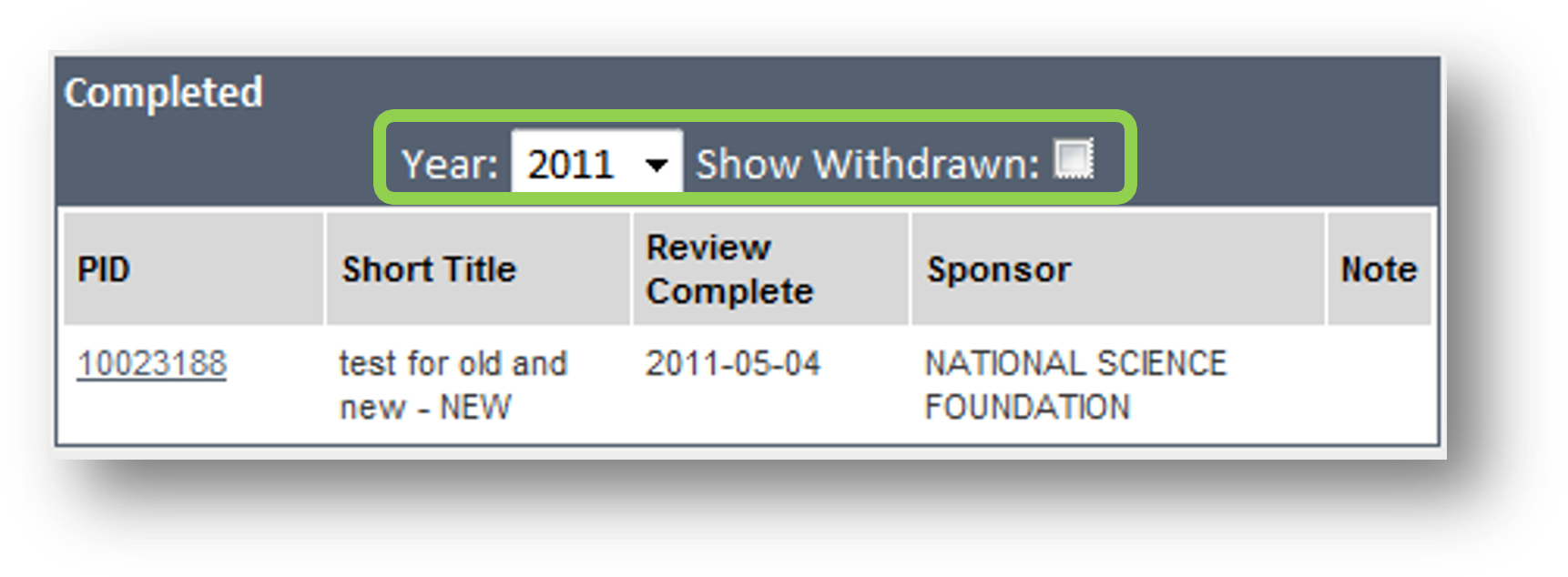
Figure 11: Completed Worklist
Awaiting My Approval
Users with approval roles will automatically see this worklist. Individuals who would not normally be an approver but were added as an ad-hoc approver will see this worklist as long as there exists for them a pending approval.

Figure 12: Awaiting My Approval Worklist
Quick Tips
You can switch between your approval roles to see eProposals pending your approval.
Figure 12 illustrates the following:
- The My Roles drop down menu displays the different roles assigned to the user. Elect to view approvals pending a specific role or choose All to view eProposals pending any approval roles assigned to the user.
- The Status drop down menu will display allows switching between the view from those that are Pending Approval, those that are Not Ready, or All.
Quick Tips
There’s a report for that…
You can run a report to see all eProposals in SPO review.
Pending OSP Review
Those who work in the Office of Sponsored Projects are the only people who will see the Pending OSP Review worklist. This worklist is meant to view, by SPO, the current list of eProposals being reviewed. It also has a feature to view those that have not yet been assigned.

Figure 13: Pending OSP Review Worklist
As figure 13 illustrates, the SPO can either choose to
- Assign him/herself as the sponsored projects officer.
- Browse to select and assign a different person as the sponsored projects officer.
Tracking Page
The Tracking page for each eProposal is viewable once it has been submitted for approval. The page is accessed by clicking on the Proposal Tracking link in the Section Navigation.
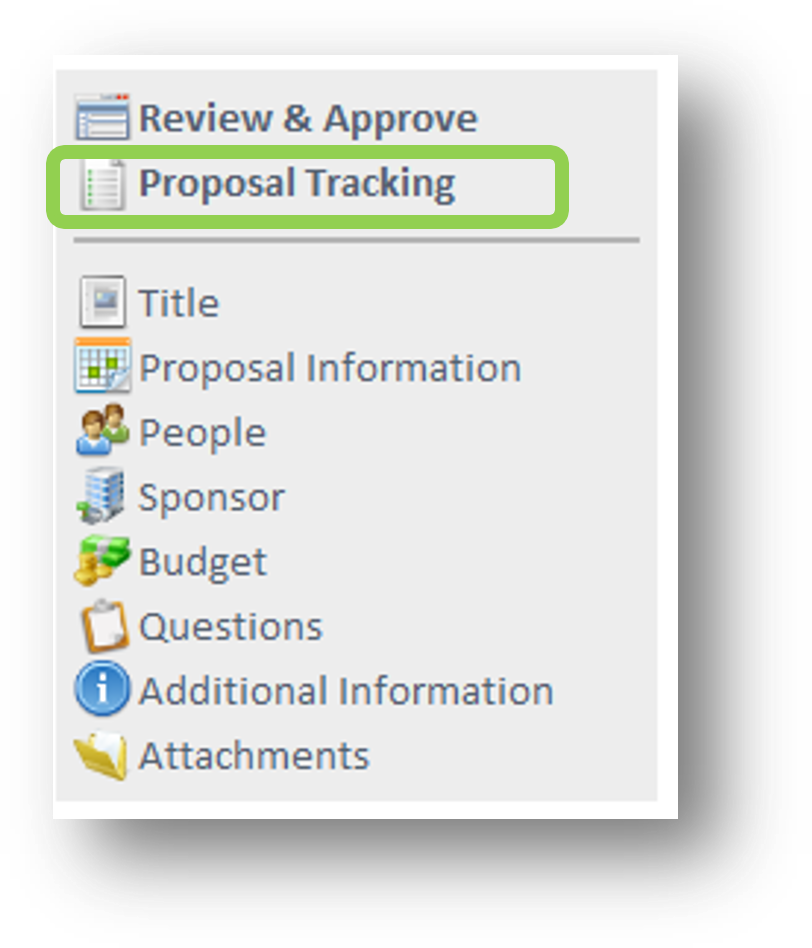
Figure 14: Only the most recent comment is displayed when hovering over the flag icon.
Clicking on the Section Navigation opens the navigation page. Comments are visible from this page via the flag ( ) icon. An entry is made into the tracking table that records the action taken, date/time, and user name when:
- An eProposal is Created
- An eProposal is Submitted for Approval
- An ad-Hoc approver is added or deleted
- An approval is satisfied
- A proxy is added or deleted
- An eProposal is Withdrawn
- An eProposal is Deleted (OSP only)
- A file is attached or deleted
Quick Tips
Comments…
Only the most recent comment is displayed when hovering over the flag icon.

Figure 15: eProposal Tracking
Appendix 1
 Figure 16: Generated Approvals Diagram
 Figure 17: Path of an eProposal